> For the complete documentation index, see [llms.txt](https://docs.realmacsoftware.com/llms.txt). Markdown versions of documentation pages are available by appending `.md` to page URLs; this page is available as [Markdown](https://docs.realmacsoftware.com/classic/user-manual/page-types/iframe.md).
# iFrame
Embed an external website, form, or document directly into your RapidWeaver built page.
With RapidWeaver's built-in iFrame page type, you can embed documents, forms, and even websites that are hosted on external platforms directly into your website's design.
***
### Getting Started
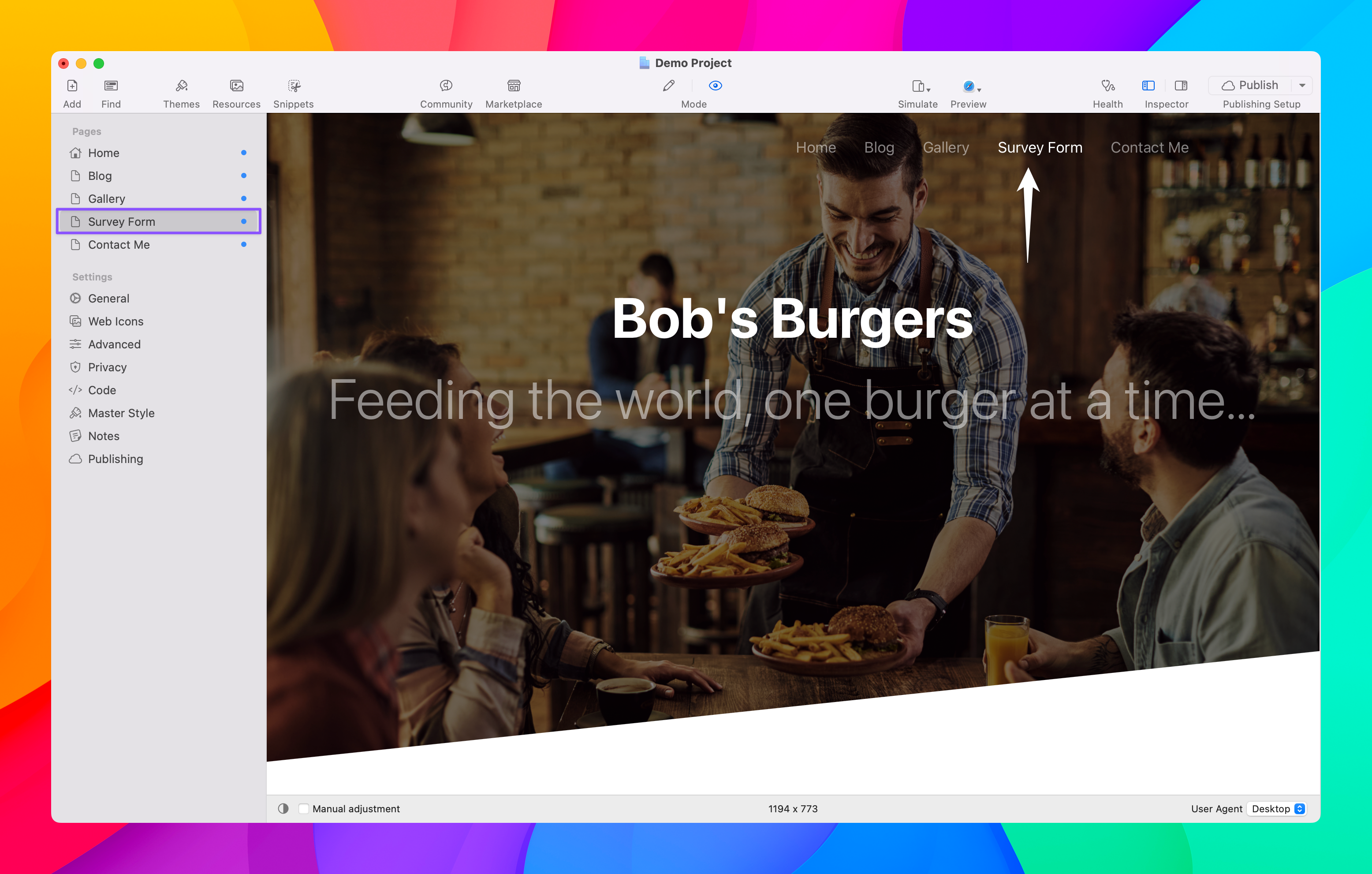
In order to add an iFrame page type to your RapidWeaver project, simply add the iFrame page to your Page List, then click on the newly added page to give it a name. This page name will be displayed in your website's navigation menu. In the below example we will be adding an iFrame page that embeds a survey onto your page from the popular form building platform MachForm.
Now, add the external URL to the resource you are embedding in the **Inspector** > **iFrame** > **iFrame Settings** > **URL** field ([**Option-Command-6**](/classic/user-manual/keyboard-shortcuts.md)).
1. **URL:** The URL of your external resource that you'd like to embed. This can be a URL to a form, or a document, or even another website.
2. **Width:** This is the width your embedded content will take up on the page. You can set this as a fixed width (Pixels) or a relative width (Percent) from the drop down menu. We recommend setting this as Percent so that your embedded content is responsive across multiple device sizes.
3. **Height:** This is the height your embedded content will take up on the page. This can only be set in pixels. You can adjust this amount until you are satisfied with the iFrame's fixed height.
4. **Use Frame:** This will simply add a small border around your embedded content in order to visually separate it from your page's content or make it stand out more on the page.
5. **Refresh Page:** This will refresh the page in RapidWeaver's Preview mode. Useful if you are making changes to the settings (such as width and height) and need to see those new settings reflected on the page.
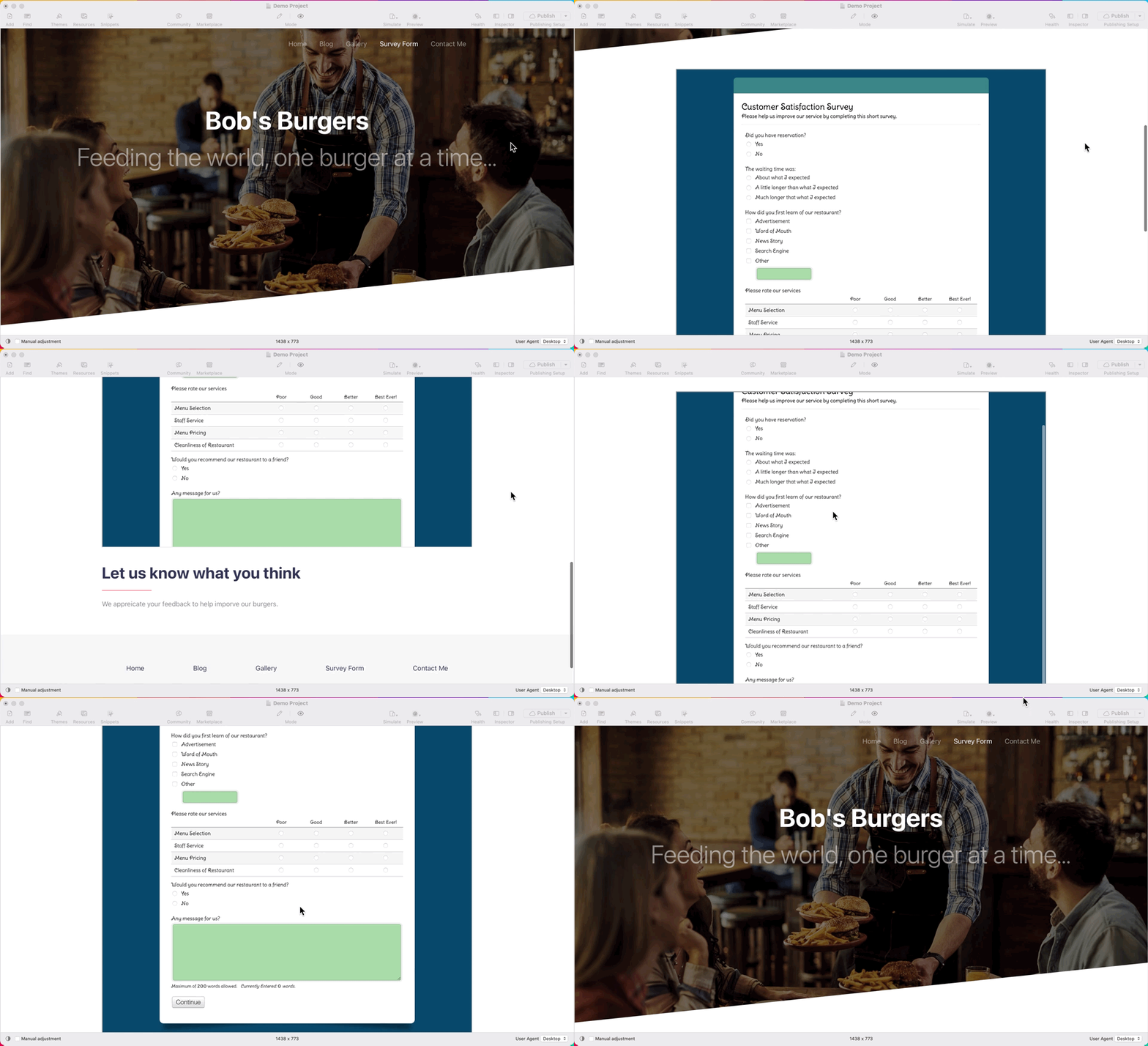
That's all there is to the iFrame page. Below is an example of what our embedded MachForm survey looks like on the page.
---
# Agent Instructions
This documentation is published with GitBook. GitBook is the documentation platform designed so that both humans and AI agents can read, navigate, and reason over technical content effectively. Learn more at gitbook.com.
## Querying This Documentation
If you need additional information that is not directly available in this page, you can query the documentation by asking a question.
Perform an HTTP GET request on the following URL with the `ask` and `goal` query parameters:
```
GET https://docs.realmacsoftware.com/classic/user-manual/page-types/iframe.md?ask=&goal=
```
`ask` is the immediate question: it should be specific, self-contained, and written in natural language.
`goal` is what the user is ultimately trying to achieve, the reason they need the answer. Sharing it helps GitBook give you a better, more relevant answer. A goal is most helpful when it describes the outcome the user wants rather than restating the question. For example, with `ask=how do I create an API token`, a goal like `automate deployments from our CI pipeline` lets GitBook tailor the answer to that use case.
The response will contain a direct answer to the question and relevant excerpts and sources from the documentation.
Use this mechanism when the answer is not explicitly present in the current page, you need clarification or additional context, or you want to retrieve related documentation sections.