Font Family
Configure fonts for use in your website
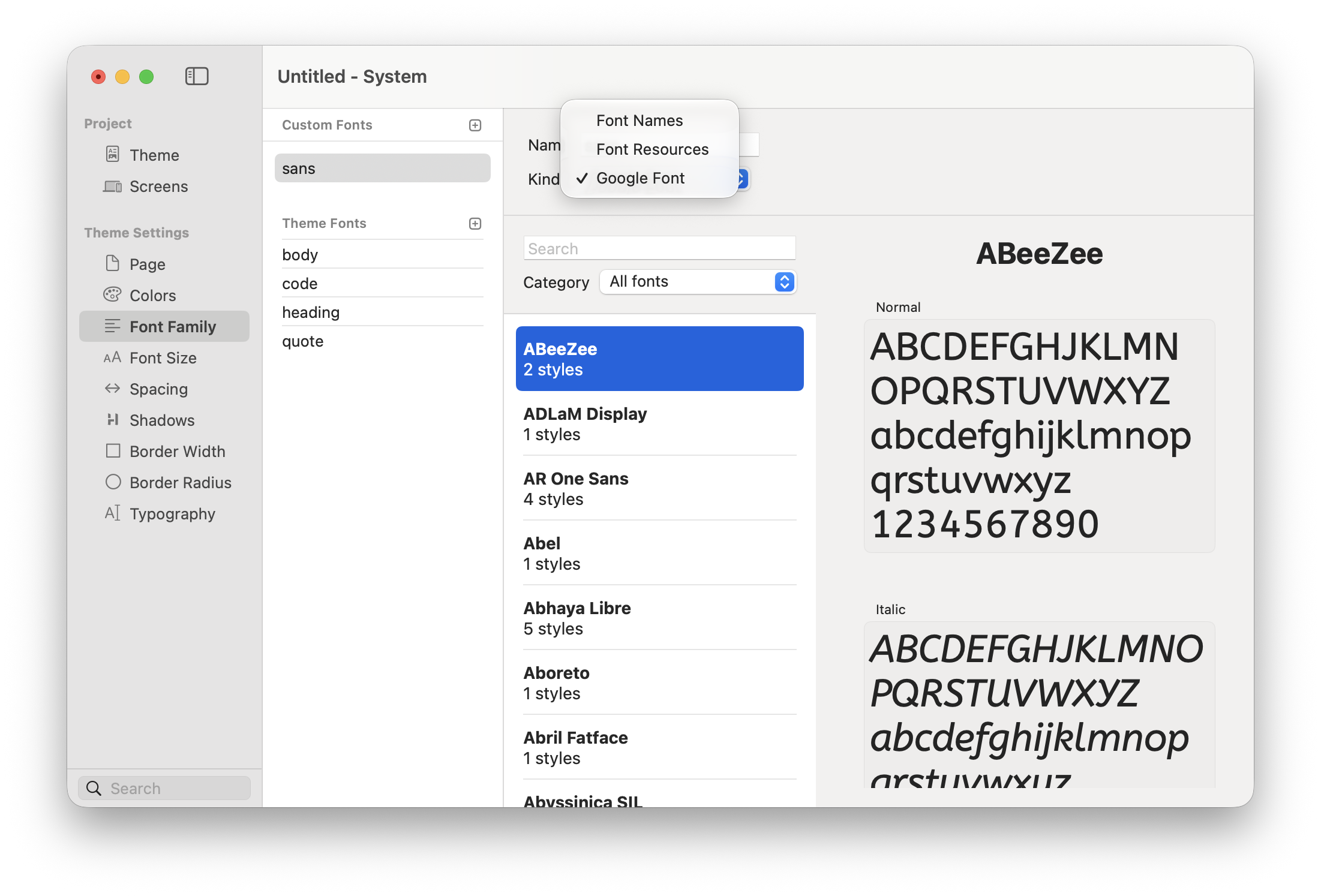
Font families define the overall personality of your site, and Elements gives you three straightforward ways to configure them. You can stick with fast, reliable system fonts, load your own custom font files, or pull from Google Fonts.
This page walks you through each option, how they differ, and when to use them so you can get the look you want without any headaches.
Using System Fonts
Webfonts were great when most computers only had a handful of good fonts pre-installed. Thanks to font creation and buying by Apple, Microsoft, Google, and other folks, most computers have good—no, great—fonts installed, and they're a great option if you want to not load a separate font.
Learn more about what fonts are supported by popular operating systems on the following sites:
Using Custom Fonts
Elements includes a built-in Font Manager that lets you add your own local web fonts. It supports common formats like .woff, .woff2, and .ttf, making it easy to use custom typography in your designs.
Watch the video below to learn more about adding custom fonts to your website:
For best browser support and performance, custom fonts should be provided in WOFF2 format. WOFF (the Web Open Font Format) is a web font format developed by Mozilla, Type Supply, LettError, and other organisations.
Recommended formats (in order of preference):
WOFF2 – Most modern and efficient format (used by all modern browsers).
WOFF - Good option when also supporting older browsers.
TTF - Mostly for legacy or specific use cases (not recommended for production due to larger size and weaker compression).
Create a Custom Font in Theme Studio
Open Theme Studio.
In the Font Family section, add a New Custom Font.
Give it a name, like Mighty or Rubik.
Set Kind to Font Resource.
Drag your font files from Resources into the drop area.
For a single-face font, drag in the one file.
For multi-weight fonts, add each weight file.


Assign Weights for Multi-Font Families
Elements usually detects weights correctly, but it depends on how the font is packaged.
Select each imported font file.
Check the assigned Weight in the Inspector.
Correct anything that isn’t right. This ensures Elements uses the proper weights when you switch between font styles.
Troubleshooting
If a custom font doesn’t appear correctly:
Check the weight assignments in the Inspector.
Make sure the fonts are placed in the fonts folder inside Resources.
Re-add the font in Theme Studio if needed.
If you still have trouble, visit the Elements Forum, we’re always happy to help.
Last updated
Was this helpful?


