# Getting Started
{% hint style="danger" %}
**Early access:** The Store is still under heavy development, so expect rapid changes. If you hit any issues, [get in touch on the forum](https://forums.realmacsoftware.com/).
{% endhint %}
{% hint style="warning" %}
Ready to publish? [Apply to the Partner Program](https://docs.realmacsoftware.com/elements-docs/store/partners/join-the-partner-program) to sell products directly to Elements users.
{% endhint %}
### Before you begin
This guide covers first-time setup for the developer area and your first store product.
If your Elements Cloud account has been upgraded to a Developer Account, complete these steps before the developer sections appear in the Store window.
{% stepper %}
{% step %}
### Update Elements
Make sure you are running Elements `1.2.3` or newer.
{% endstep %}
{% step %}
### Sign out of Elements Cloud
Open **Preferences → Account**, then sign out of your Elements Cloud account.
{% endstep %}
{% step %}
### Restart Elements
Quit Elements completely, then relaunch it.
{% endstep %}
{% step %}
### Sign back in
Sign in again with your Elements Cloud account.
{% endstep %}
{% step %}
### Watch the walkthrough
Watch the [Store Developer Walkthrough Video](https://www.youtube.com/watch?v=x1b5k77Mv5Y).
{% endstep %}
{% endstepper %}
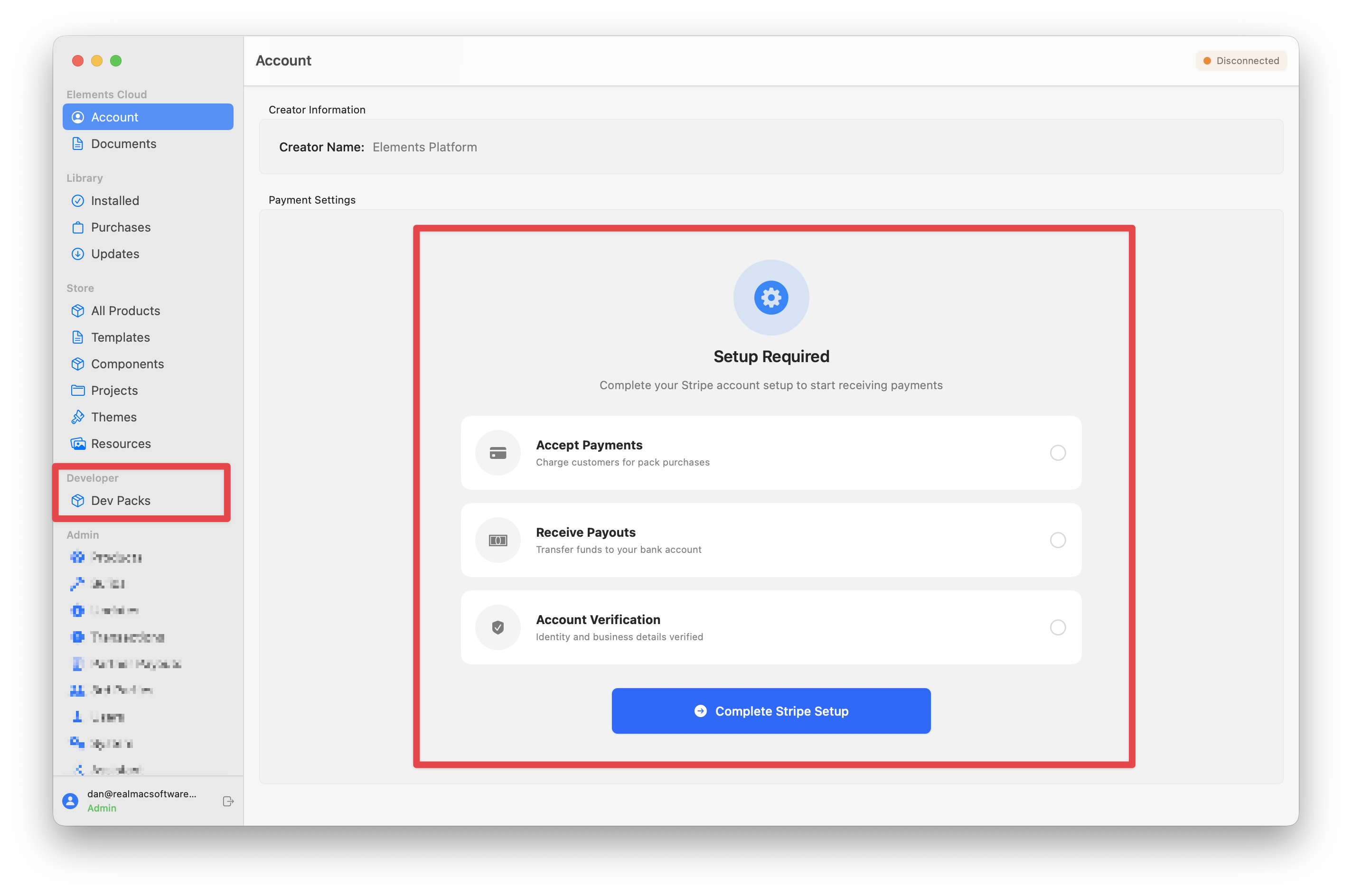
After that, you should see **Payment Settings** and the **Developer** sections in the Store window.
### Connect Stripe
Open **Payment Settings** in your account view and connect, or create, your Stripe Connect account.
You must complete this step before you can receive payouts for product sales.
### Add your first product
Before you submit anything, review the [Submission Requirements](https://docs.realmacsoftware.com/elements-docs/store/partners/submission-requirements). That page includes the current thumbnail and screenshot specs.
Open the Store window in Elements, then select **Dev Packs** under **Developer** in the sidebar.
From there, you can manage installed components and submit them to the Store.
Each product submission has two parts:
1. **Build** — the dev pack you upload for review.
2. **Info** — the listing details, pricing, and screenshots shown in the Store.
{% hint style="warning" %}
Make sure your pack defines valid [categories in info.json](https://docs.realmacsoftware.com/elements-docs/elements-language/element-pack/info-json). If not, your submission will fail.
{% endhint %}
{% embed url="" %}