> For the complete documentation index, see [llms.txt](https://docs.realmacsoftware.com/elements-docs/llms.txt). Markdown versions of documentation pages are available by appending `.md` to page URLs; this page is available as [Markdown](https://docs.realmacsoftware.com/elements-docs/using-elements/design-and-theming/theme-studio/theme.md).
# Theme
Change the style of your website in a single click
Themes provide the starting design system for a project. A theme supplies coordinated colours, font families, font sizes, spacing, shadows, border values, typography, and page colours.
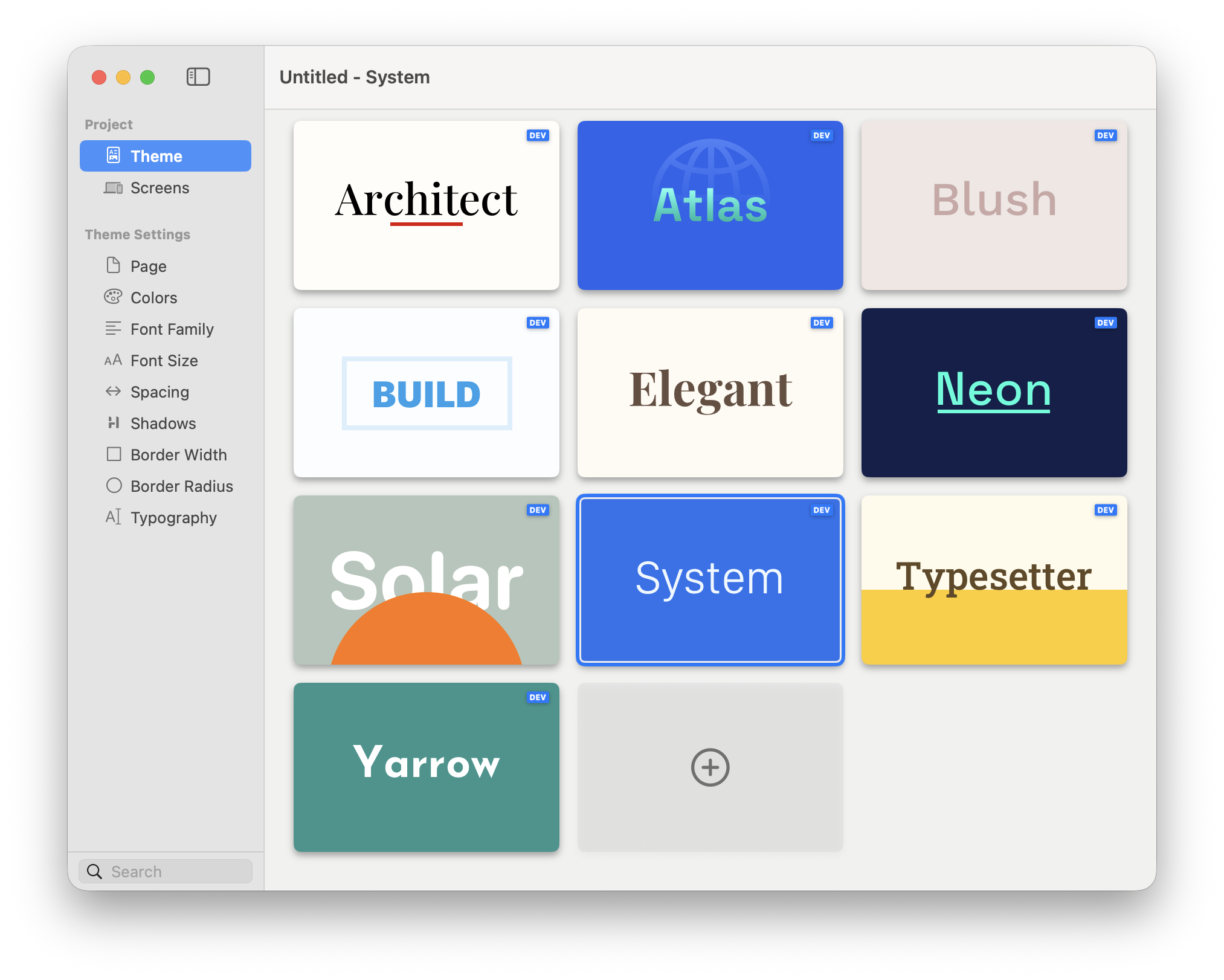
Open **Theme Studio → Theme** and select a theme card to apply it to the project.
Select a theme to change the project-wide design foundation.
### Choosing a Theme
1. Open **Theme Studio → Theme**.
2. Select a theme card.
3. Review representative pages at mobile and desktop sizes.
4. Check both light and dark appearance.
5. Refine the shared values in the remaining Theme Studio sections.
Components that use theme values update with the new design system. Direct custom values remain deliberate exceptions, so review them when switching to a visually different theme.
{% hint style="info" %}
Choose a theme for its overall structure and character, then customise its Brand, Accent, Surface, Text, fonts, and defaults for the project.
{% endhint %}
### Creating a Custom Theme
You can create reusable themes using the built-in Elements DevTools. A custom theme can define its own colour system, typography scale, spacing, shadows, borders, and other shared values.
{% hint style="warning" %}
**Theme creation is only available on the Pro plan**. Base and Plus users can still override theme values, and customise styling on a per project basis.
{% endhint %}
Before creating a theme, create or open a Dev Pack to hold it. Then:
1. Open **Theme Studio → Theme**.
2. Select the plus card at the end of the theme list.
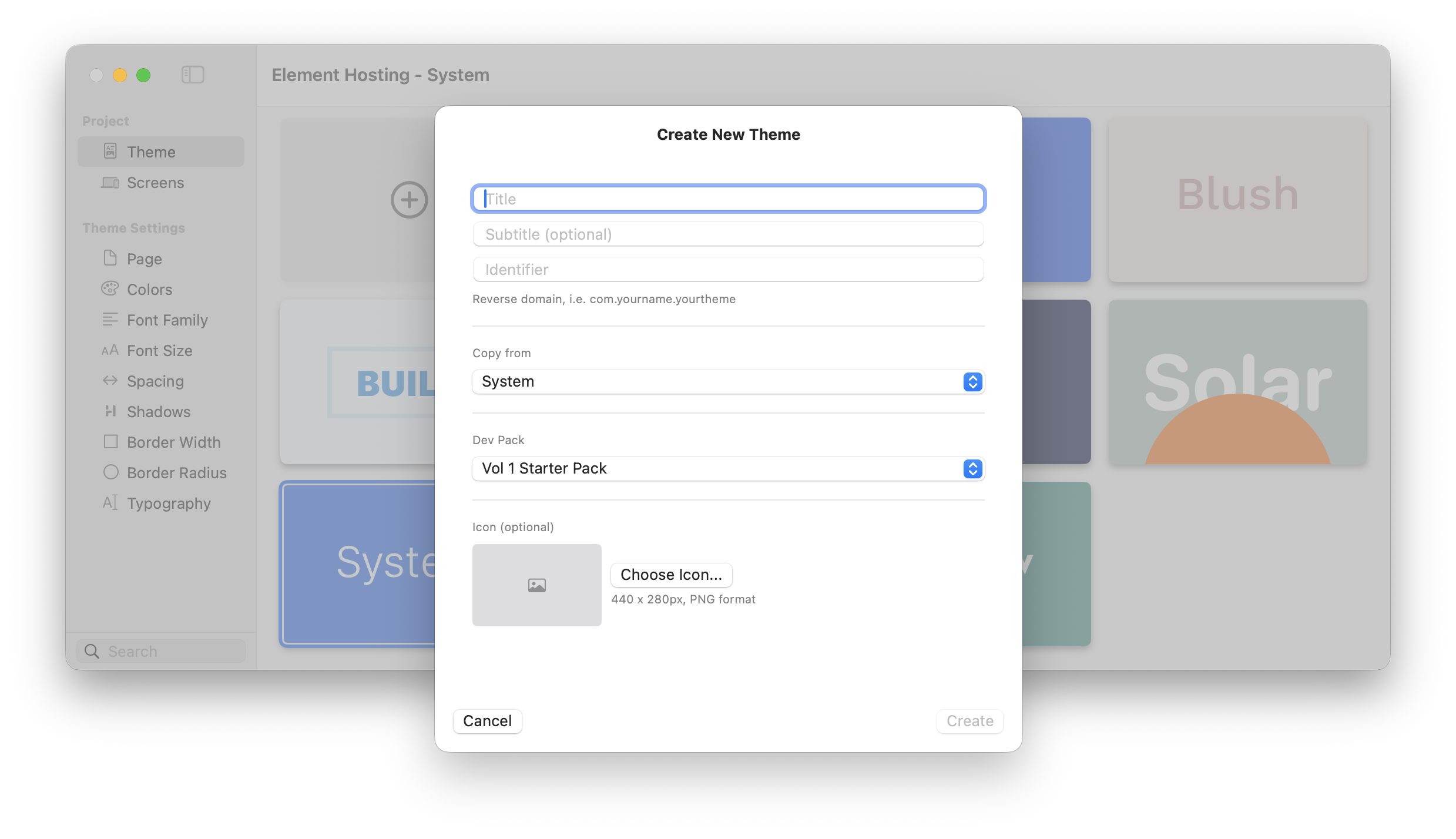
3. Choose the Dev Pack and enter the theme details.
4. Configure the theme values in Theme Studio.
5. Add an icon later if one was not supplied during creation.
Choose a Dev Pack and enter the custom theme details.
### Before Switching Themes
* Save a copy of the project if you want an easy comparison point.
* Check every page background and text contrast after switching.
* Review custom colours and component-level overrides.
* Confirm that typography and spacing still fit the content.
### Dev Diary Videos for Themes
The following video will show you how themes work in Elements. The video was recorded with a development version of Elements so the feature(s) available now may differ slightly to those in the video.
{% embed url="" %}
---
# Agent Instructions
This documentation is published with GitBook. GitBook is the documentation platform designed so that both humans and AI agents can read, navigate, and reason over technical content effectively. Learn more at gitbook.com.
## Querying This Documentation
If you need additional information that is not directly available in this page, you can query the documentation by asking a question.
Perform an HTTP GET request on the following URL with the `ask` and `goal` query parameters:
```
GET https://docs.realmacsoftware.com/elements-docs/using-elements/design-and-theming/theme-studio/theme.md?ask=&goal=
```
`ask` is the immediate question: it should be specific, self-contained, and written in natural language.
`goal` is what the user is ultimately trying to achieve, the reason they need the answer. Sharing it helps GitBook give you a better, more relevant answer. A goal is most helpful when it describes the outcome the user wants rather than restating the question. For example, with `ask=how do I create an API token`, a goal like `automate deployments from our CI pipeline` lets GitBook tailor the answer to that use case.
The response will contain a direct answer to the question and relevant excerpts and sources from the documentation.
Use this mechanism when the answer is not explicitly present in the current page, you need clarification or additional context, or you want to retrieve related documentation sections.